Magic Bullet Looks

(Enlarge)
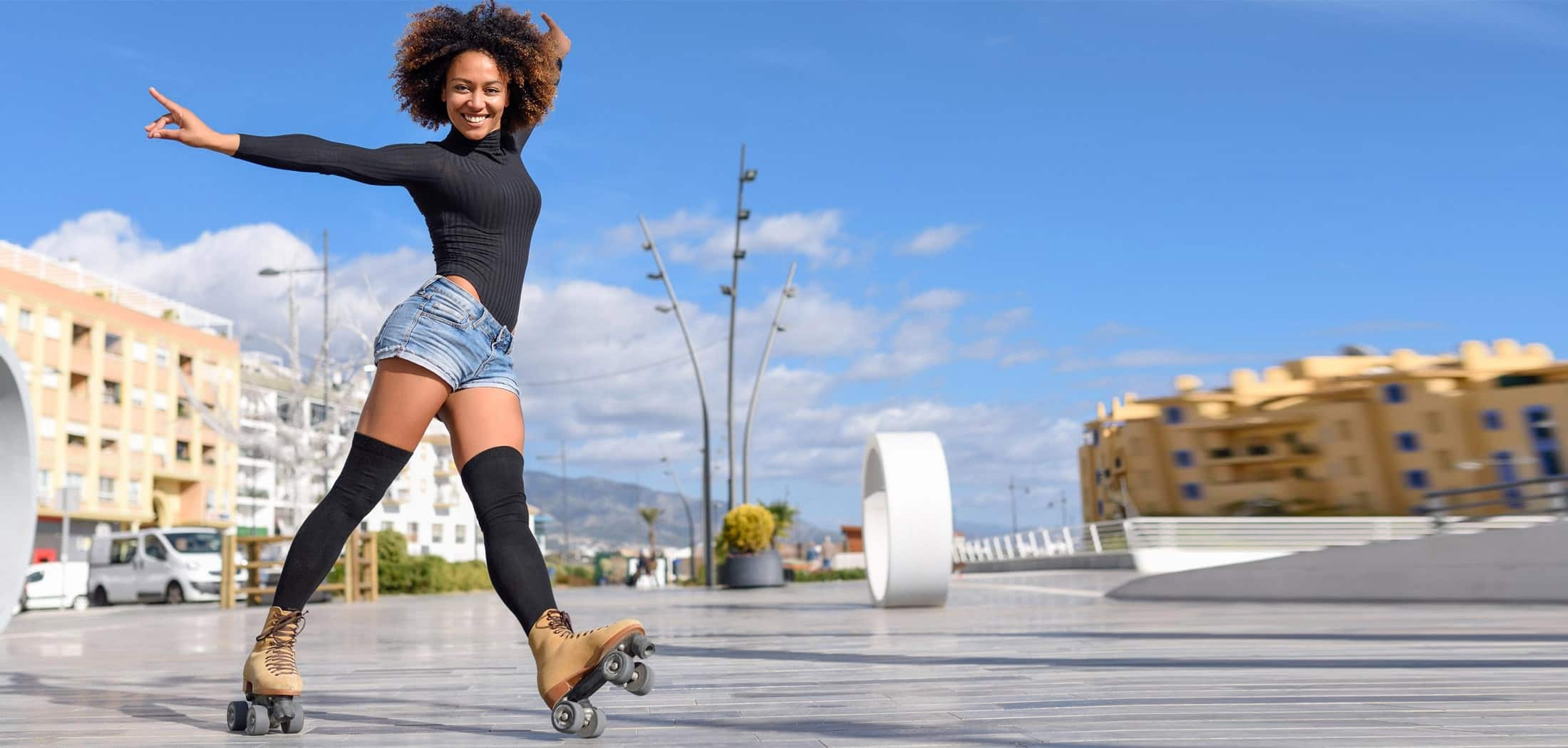
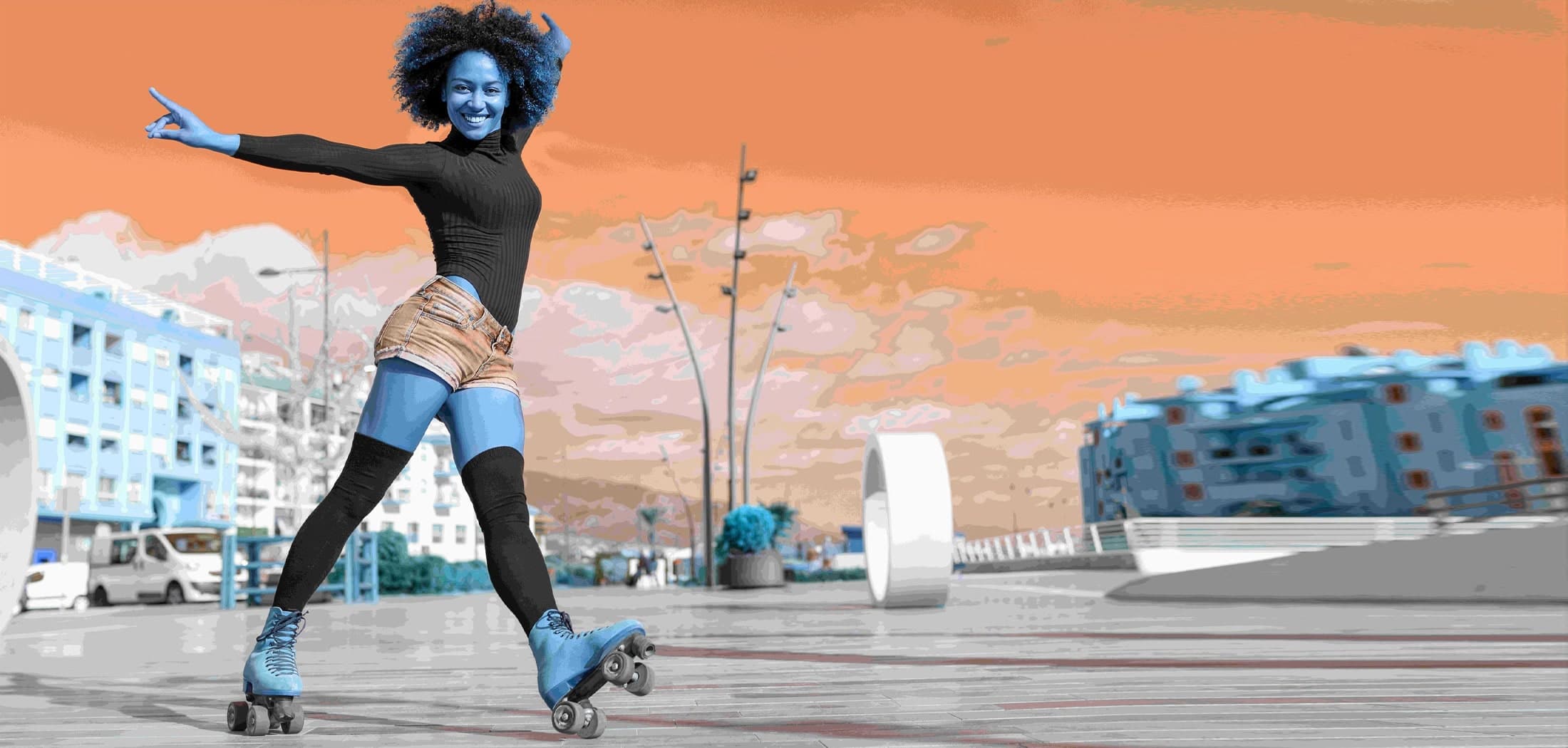
Magic Bullet Looks is one of those add-ons that really can change your video productions instantly and completely. It doesn't add a few effects to be dropped in wherever they're needed. Instead, it's designed to be applied to shots or even whole sequences of shots to give them the look and feel of a Hollywood movie.

The add-on - found in the effects section of Pinnacle Studio Ultimate - offers a huge range of presets which can be dropped onto any footage to alter its colours, contrast, lighting, grain, and many other factors in one go. The result is an instant way to give your footage a completely new atmosphere.

Presets

(Enlarge)
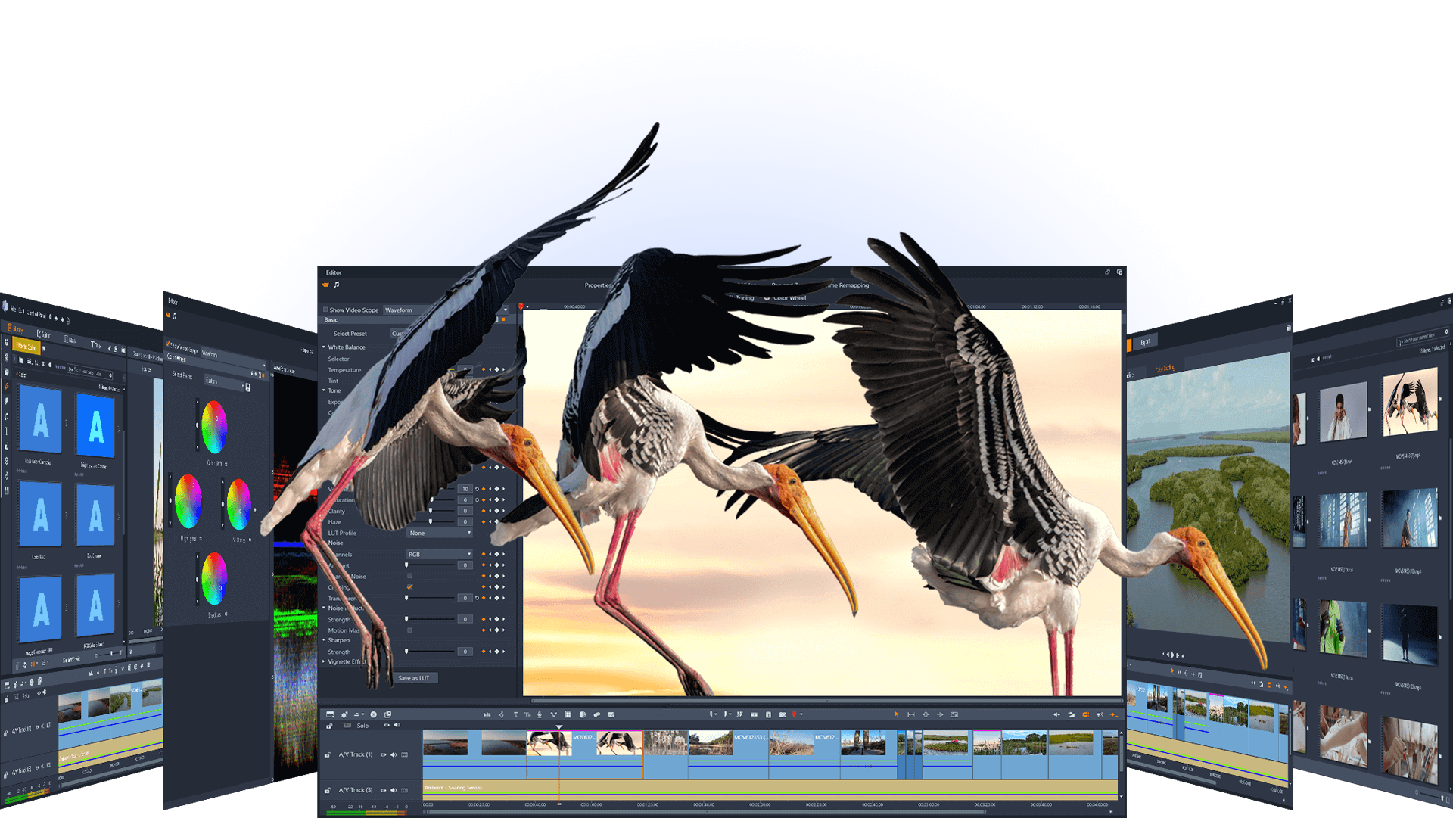
To use Magic Bullet in its most basic form, simply place your footage on the timeline, double click on it, select the effects tab at the bottom left of the footage window, and choose magic bullet looks.

Now select "edit look" and the package will load up. Move your mouse to the left of the screen and a selection of about 100 presets will appear, grouped under headings like "music video" "popular film" and "popular TV". Simply double click on a look and you can see how it will affect your footage. When you're happy with your choice, click OK and it will be applied to your footage on the timeline (it may take a while before the footage is processed so it will play back smoothly).

Your own looks

(Enlarge)
Magic Bullet looks is a very advanced package. If you want to simply add presets, you can do so with a couple of clicks, and that's probably all you'll want to do most of the time.

However, if you want to go deeper, the package allows you to take each of the effects that makes up a "look" and edit it. To work out what that actually means, select a preset, and a series of boxes will appear at the bottom of the screen. Each box represents an effect applied to your footage, and the order in which they're applied goes from left to right.

The simplest way to see and alter the effect of a preset is to turn off each of the boxes in turn by clicking on the red light at the top right of the box. This removes the effect temporarily so you can see the effect it has.

Some of the effects alter the colours in an image, others refine the brightness levels. Some add effects like grain, coloured filters or glows. There are too many to list here, but each time you select a box, a set of controls appear to the right of the screen. These allow you to alter the effect more subtly.

By choosing a preset close to the effect you're after, and then playing with the settings to increase or reduce parts of the effect, you can create any look you want.

*Offer ends 28th February 2009.