Picture in picture

Picture-in-picture and split screen effects have always been a strong part of news and current affairs programming, but they're now making their way more and more into other areas of video production.

(To enlarge)
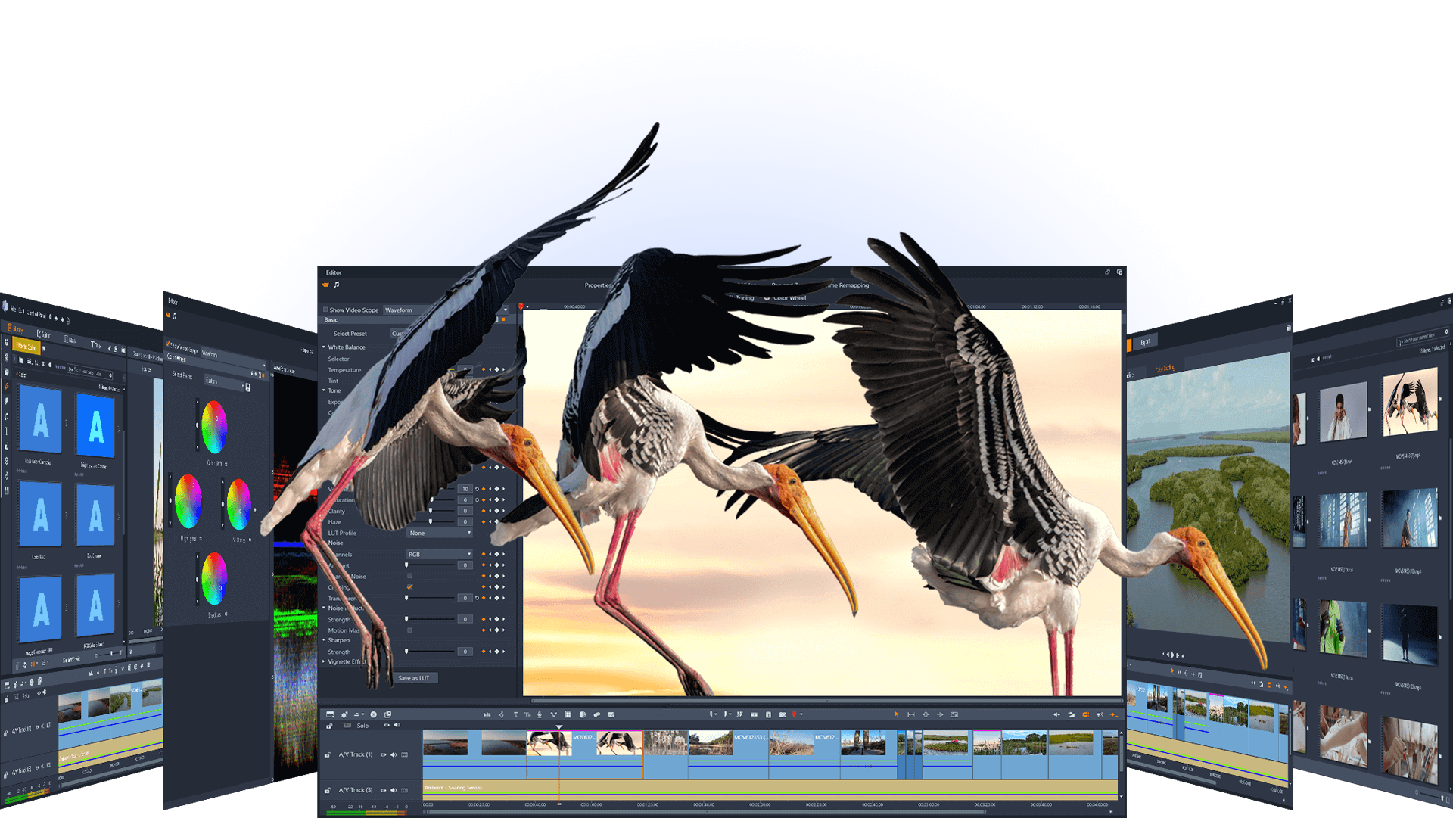
Put simply, PIP (picture-in-picture) effects cover any shot where you have more than one video playing on screen at the same time. The simplest example is a news report where the presenter is pictured full screen and shots of whatever they're talking about are shown in a box at the top left of the frame.

However, much more complex PIP effects are also possible. Think of the series 24, in which simultaneous action is often displayed in three or four boxes positioned around the screen.

How to do it

Producing this kind of effect in Pinnacle Studio is easy. Here's how:

1 Drag your background footage to the timeline in the top video track
2 Drag the footage you want to place into it onto the overlay track.
3 With the overlay footage selected, double click to open the effects panel, and select the PIP icon (second from the bottom on the left hand side).
4 Check the Enable PIP box, and you'll see your overlay footage in a small box at the top right of your background footage.

(To enlarge)
You can now play back your work and you'll see your PIP effect. You can also edit both the main and overlay clip to get the two images working together as you want them to.

Note: if you're working with HD footage, or you've got an old PC, you might notice playback is a little jerky at this point. This is because your computer is having to do twice as much work as when you've only got one clip playing. Don't worry - when you output your finished film, playback will be smooth.

You can select where your overlay footage appears from the dropdown list at the top of the panel, but you can also simply click and drag on it in the left hand monitor, or grab the corners to grow or shrink the picture.

As it is, the whole of the overlay frame is displayed in the PIP effect, but suppose you don't want to do that. Suppose you're trying to create a 24 style split-screen? Well, just click on the "crop" button at the top left of the PIP window, and drag inwards from the corners of the left hand monitor. The box you now see controls the portion of your overlay frame that will be displayed.

In other words, you can create a split screen simply by creating a full screen PIP effect, then cropping it so that one side of the screen displays the overlay track and the other shows the background footage.

You can also try adding a border, or a drop shadow with the controls at the right of the PIP panel.

Studio only has two video tracks, but if you want to have several shots on screen at the same time, there is a way. Simply create your shot with two video clips as a separate project, render it out as a file using the File option of the Make Movie tab.

Now import that clip into your album and drag it to the timeline. You can now add another shot in the overlay track and use the PIP effect on that to place it correctly on the screen.

*Offer ends 31 May 2009.