Making the most of Transitions

Transitions are simply the effects used in a video edit to get from one shot to the next. The most common ones by far are the straight cut and the dissolve or fade. However, Studio ships with dozens of additional transition effects which can be dropped into any production to add flare and style.

Where to find them, and how to use them

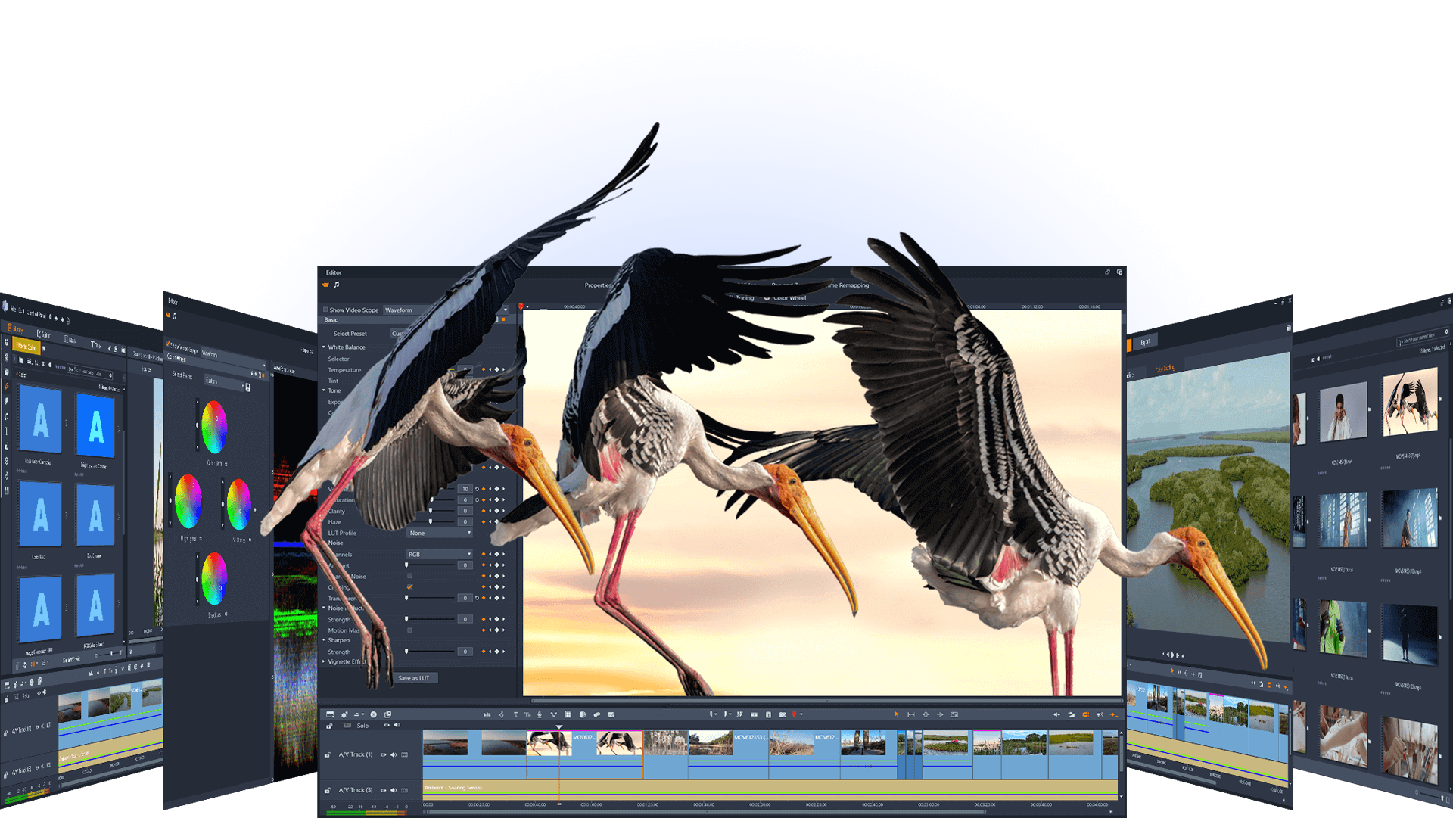
Adding a transition effect between two shots is easy. Simply select the transitions tab (2nd tab down at the left of the clips window) and you'll be presented with pages of transitions to choose from. You can then drag them to the timeline between any two clips and adjust their duration just as you would an ordinary video clip.

If you don't like the effect, you can replace it by simply dragging another transition on top of it, or select and delete it altogether.

How to add more

You can also add extra transitions to those included with Studio by selecting the "More transitions" option from the dropdown list at the top of the transitions window.

House styles

(click to enlarge)
The key to using transitions is not to drop them randomly into your production, but to know exactly when and why you're using them.

Factual videos often use unusual transitions to create a "house style". The idea here is that you select one or two very specific transition effects and use them every time you are about to move to a certain section of your show.

For example: in sports coverage, there's often a distinctive transition used to tell the viewer they're watching a replay. In a game show, an unusual transition may be used to indicate a bonus question, or a cut to the final round. Likewise, a magazine programme might use a signature transition to switch from a studio section to a report filmed on location.

The key is to decide what each type of transition means in the context of your programme and repeat it when, and only when that context comes up. If the "action replay" transition appeared in the middle of a football match when there wasn't a replay, the whole audience would be confused.

Titles

(click to enlarge)
Some of the really flashy transitions only really come into their own for title screens. If you apply a transition to a title, you can have the text reveal itself or move onto the screen in a whole range of weird and wonderful ways. Try adding the "glass break" transition and watch your title shatter into pieces.

Less is more

(click to enlarge)
In drama, you rarely see anything other than a simple cut, a fade, or a dip to black or white. That's not to say you can't include more exotic transitions in your dramas, but again, you need to be sure why you're doing it.

The Star Wars movies for example, use slow wipes across the screen to indicate that the scene is moving from one star system to another. Other movies and TV shows use a few signature transitions to indicate changes of scene (particularly when there's a comic book feel to the production - Batman is the obvious example here).